

Approve or reject an SAP request in Slack.
The requester works in SAP. The reviewer works in Slack. I built the approval flow that sends the right person a direct message and matches the decision to the document in SAP. The test screens follow the same request before the decision, after it and back in SAP.
Two sides of a Slack decision
Compare the same request. After rejection, the outcome replaces the approval buttons.
From the Slack button to the SAP record
Follow request U11225148. The reviewer chose Reject in Slack. In this test, processing was started manually in SAP. The matching document then showed R.
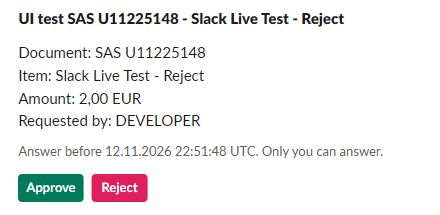
Choose a response in Slack
The direct message shows test request U11225148 for EUR 2. The reviewer sees the reply deadline and the Approve and Reject buttons just below it.
AView full size ↗- AThe reviewer chooses Approve or Reject here.
Find the same document in SAP
Follow the document numbers in the SAP test. U11225148 ends in R for rejected. The other document ends in A for approved. Each decision belongs to its own document.
 ABView full size ↗
- AU11225148 is the document number from the Slack card.
- BR on the same row shows that SAP recorded the rejection.
How does one decision show up in two places?
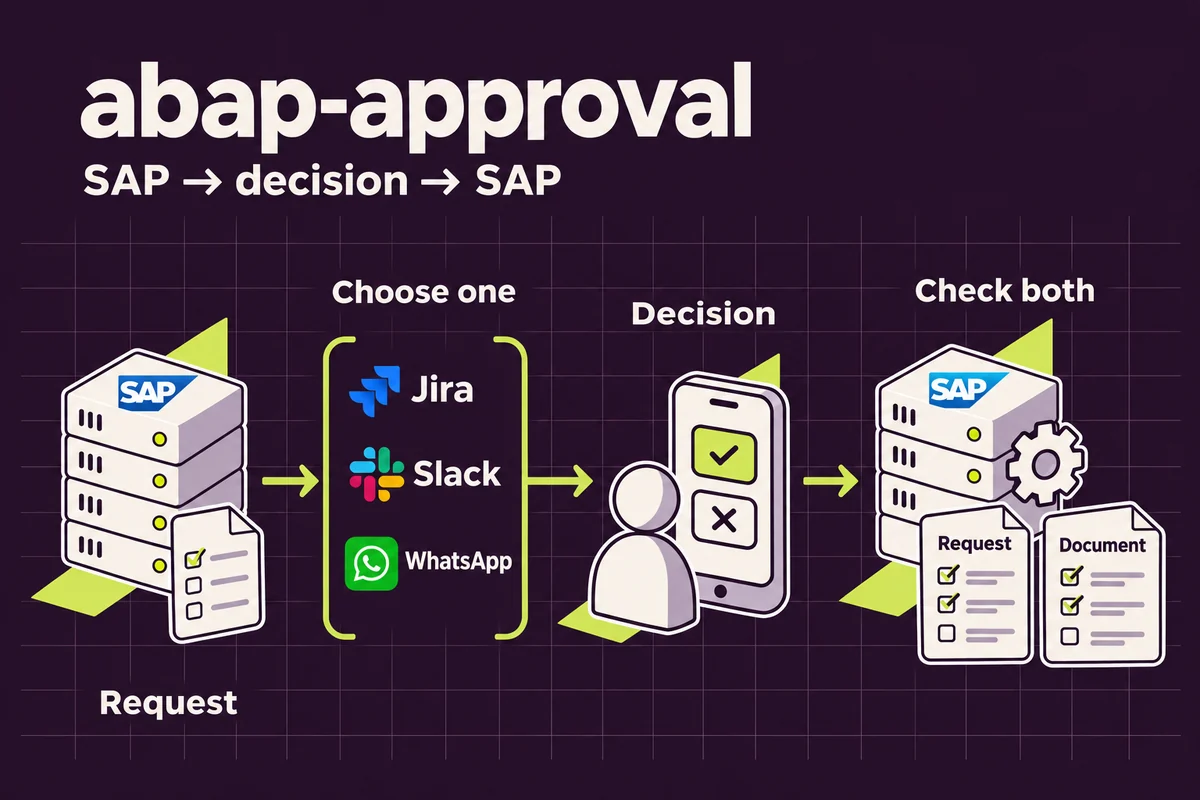
Address the request to its reviewer
SAP keeps the document, amount, reviewer and deadline together. Each request uses one of the three channels in the diagram. Here, the reviewer receives a private Slack card.
Follow the decision back
The decision updates the SAP request and the demo business document. In separate automatic tests, one approval and one rejection reached SAP without a manual processing step. Both Slack cards displayed the result and removed the buttons.
What I built
- Collect a decision in a direct message
- I send the reviewer a card with the request, amount and deadline. Approving or rejecting it in Slack records the decision against the request in SAP.Choose a response in Slack
- Close the card when the request closes
- Once SAP processes the decision, the card shows the outcome and both buttons disappear. I also added a way to update a card when its request is cancelled in SAP.When SAP withdraws the request
- Bring failed jobs to the team
- I built a monitor that finds cancelled background jobs and program failures in SAP and sends an alert to the team’s Slack channel.Read the alert in the channel
- Keep a conversation together
- From SAP I can update the original message, post a reply in its thread and share print output as a PDF. A team can keep the document beside the discussion about it.Open an SAP document in the channel
From the test screens
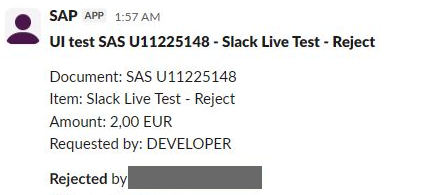
The same card after the decision
Request U11225148 was rejected. The same card now displays Rejected in place of the buttons. The reviewer’s name is masked in the test image.
AView full size ↗- ARejected replaces the buttons after the decision is processed.
A single click records the decision in SAP
In the U11225148 test, processing was started manually in SAP. In these two new requests, one click in Slack was enough. SAP automatically recorded approval for SL21 and rejection for SL22. User and connection details are masked.
 AView full size ↗
- ASAP recorded both rejection and approval in separate automatic tests.
When SAP withdraws the request
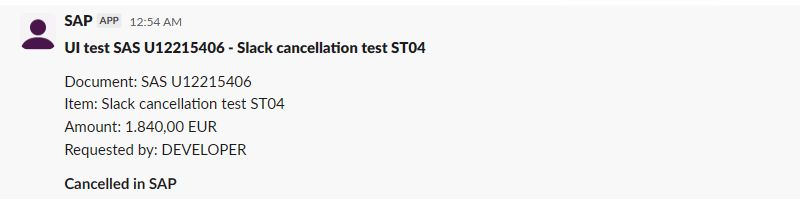
In a separate cancellation test, the card update was run manually. Slack then displayed Cancelled in SAP and removed the decision buttons.
 AView full size ↗
- AThe card shows the request was cancelled in SAP.
Spot the cancelled job
In SAP’s job list, the cancelled job is marked in red and the completed job in green.
 AView full size ↗
- ACanceled identifies the job that stopped.
Read the alert in the channel
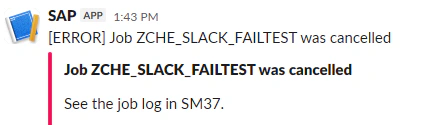
The example Slack message names the job that stopped. It also tells the team where to find the job log in SAP.
 AView full size ↗
- AThe Slack alert names the cancelled job.
Open an SAP document in the channel
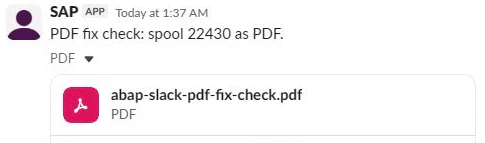
In a separate file-delivery test, SAP print output arrived in Slack as a PDF. The team can open the attachment from the message.
 AView full size ↗
- AOpen the SAP printout as a PDF here.